

[GISIMPORT]
Imports SHP/KML/KMZ (GIS) data
Options:
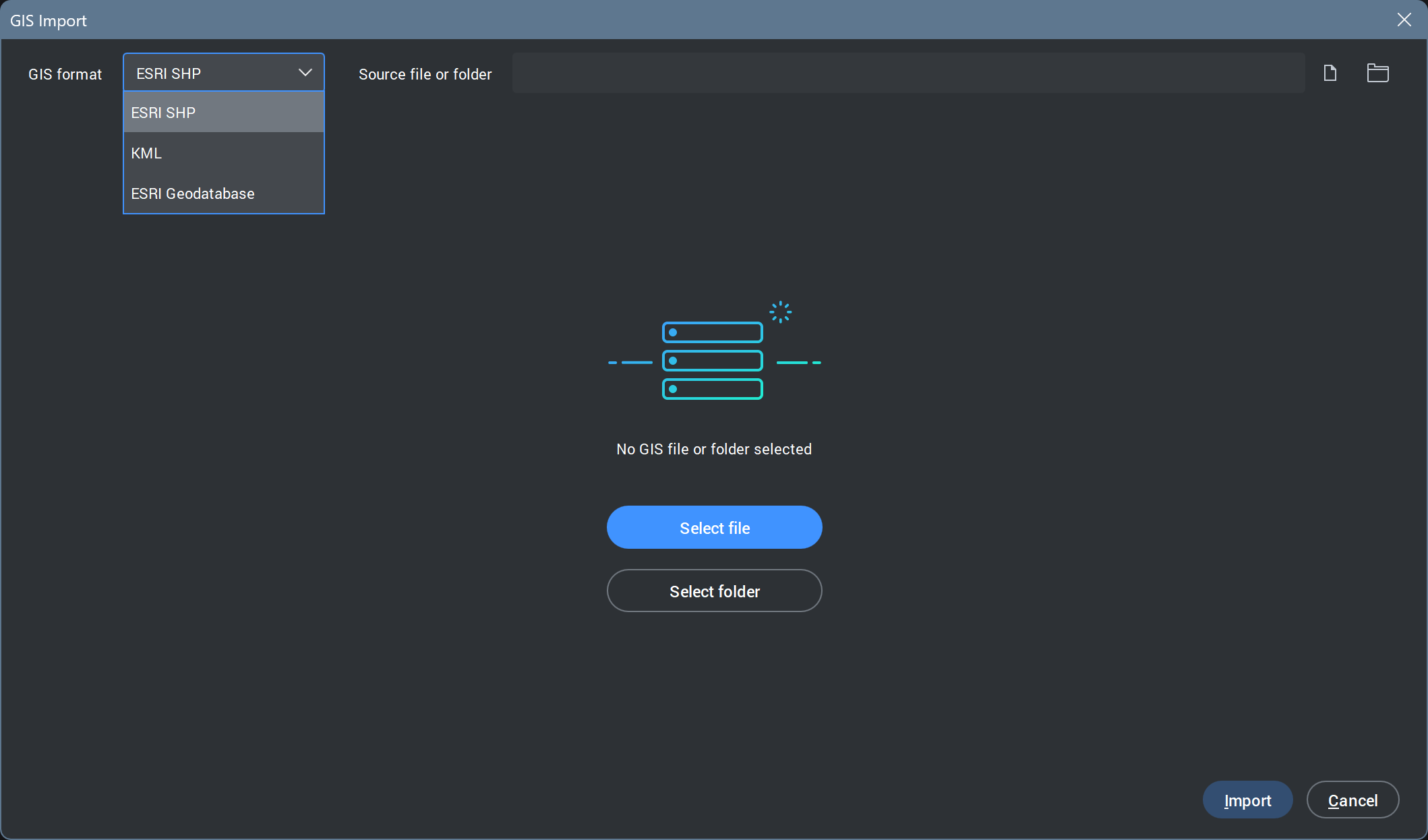
GIS format: the user needs to select the type of GIS data they want to import. The dropdown menu provides supported formats:
- ESRI SHP – for shapefile-based datasets (.shp)
- KML – Google Maps files (.kmz, .kml)
- ESRI Geodatabase – for more complex GIS datasets stored in an Esri geodatabase structure.
Source file or folder: This field is used to define the location of the GIS data to be imported. The user can either:
- Select a single file (e.g., .shp or .kml) using the Select file button or
- Select an entire folder (required for formats like ESRI SHP or ESRI Geodatabase, where multiple related files are needed) using the Select folder button.
Import: Starts the import process using the selected format and source.
Cancel: Closes the dialog without performing any action.
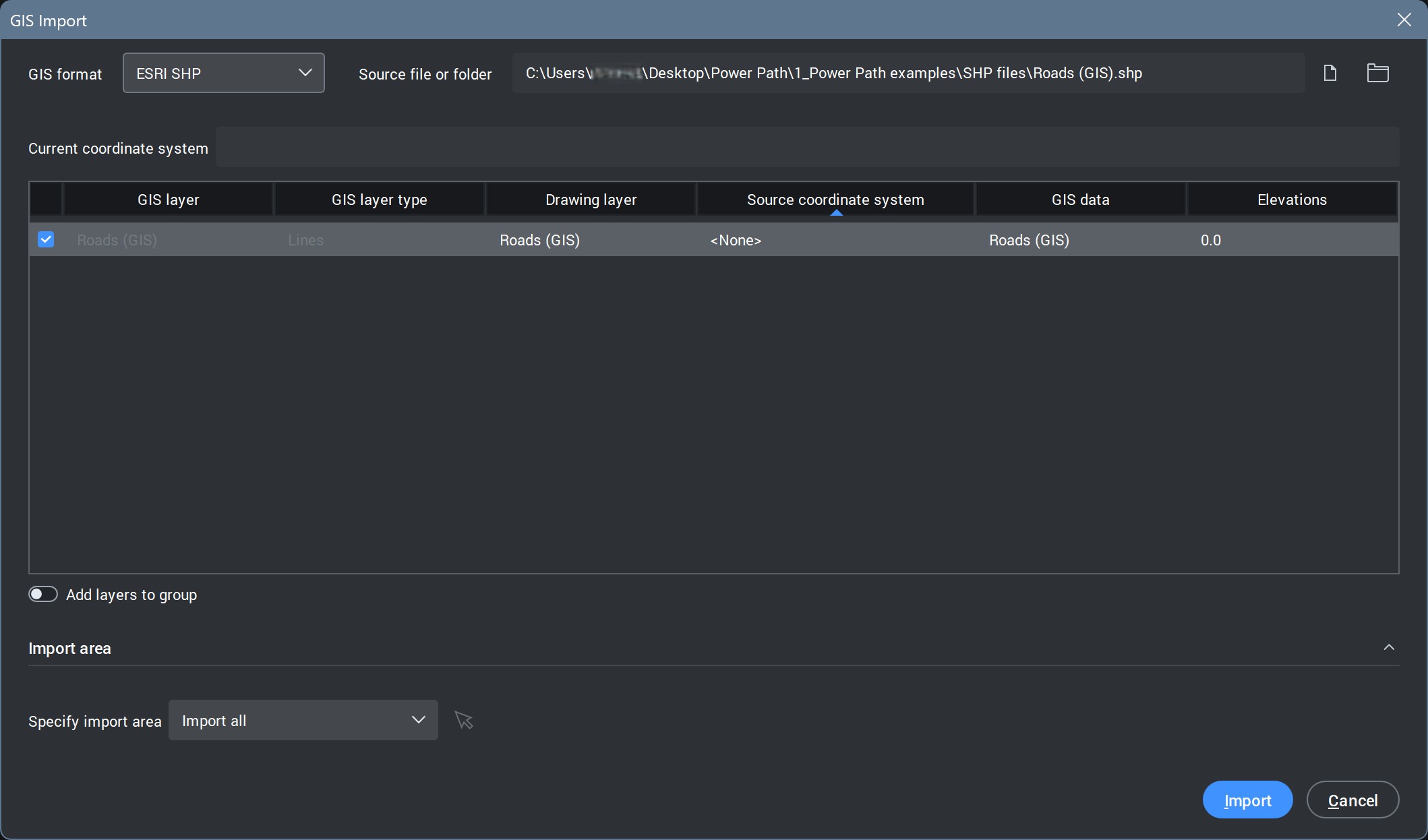
After selecting the Import button, you will get this dialog box with options:
GIS format: selected the type of GIS data format to import.
Source file or folder: selected path to the GIS data.
Current coordinate system: displays the coordinate system currently used in the drawing (project).
GIS preview data table: The table provides an overview of data from the selected source and allows the user to control how they will be imported.
- Selection checkbox: Enables or disables import for each individual selected file
- GIS layer: Name of the layer from the source file
- GIS layer type: Type of geometry (e.g., points, lines, polygons)
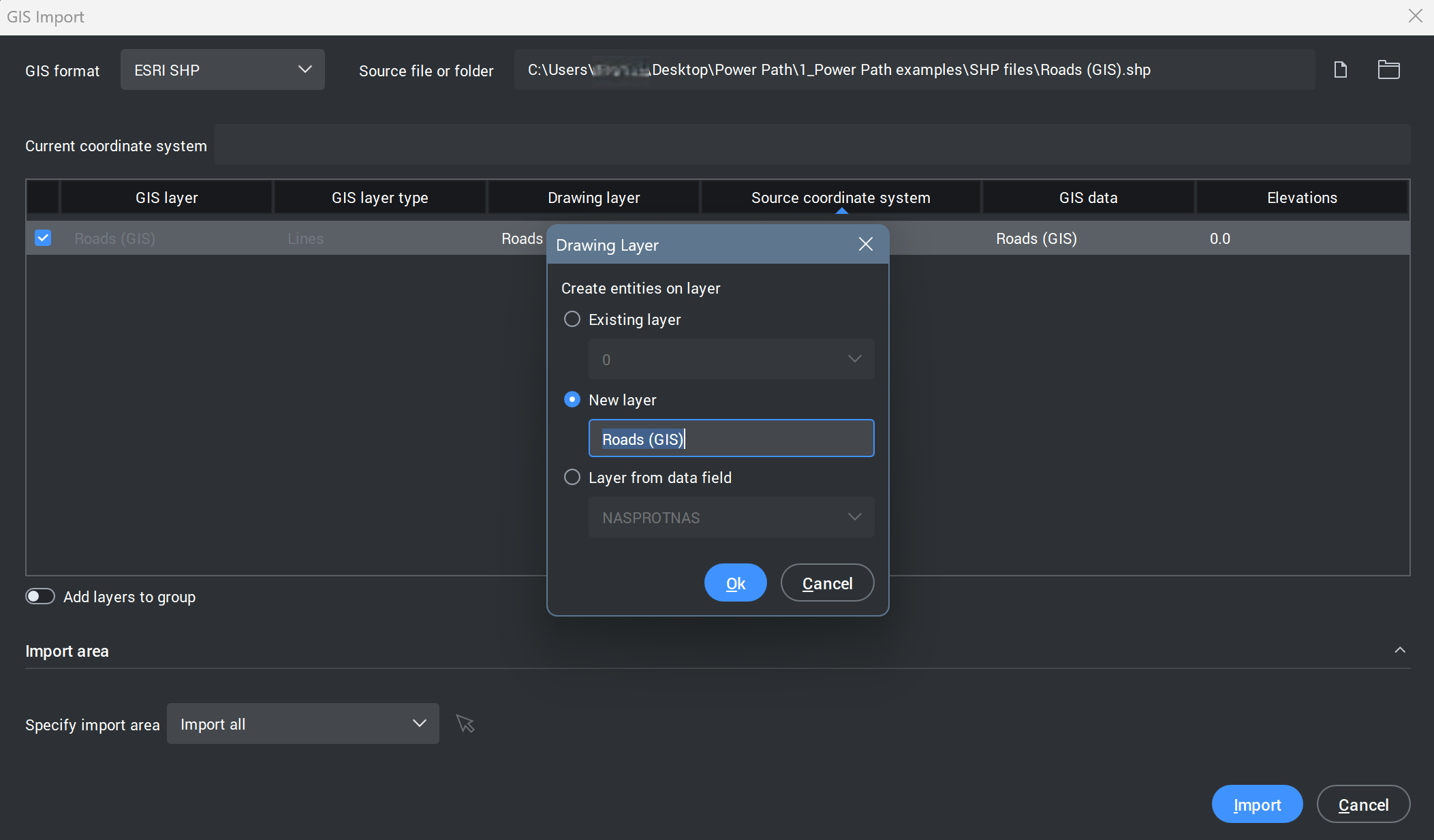
- Drawing layer: Target layer where the GIS data will be placed. The user can edit it by clicking on the named drawing layer.
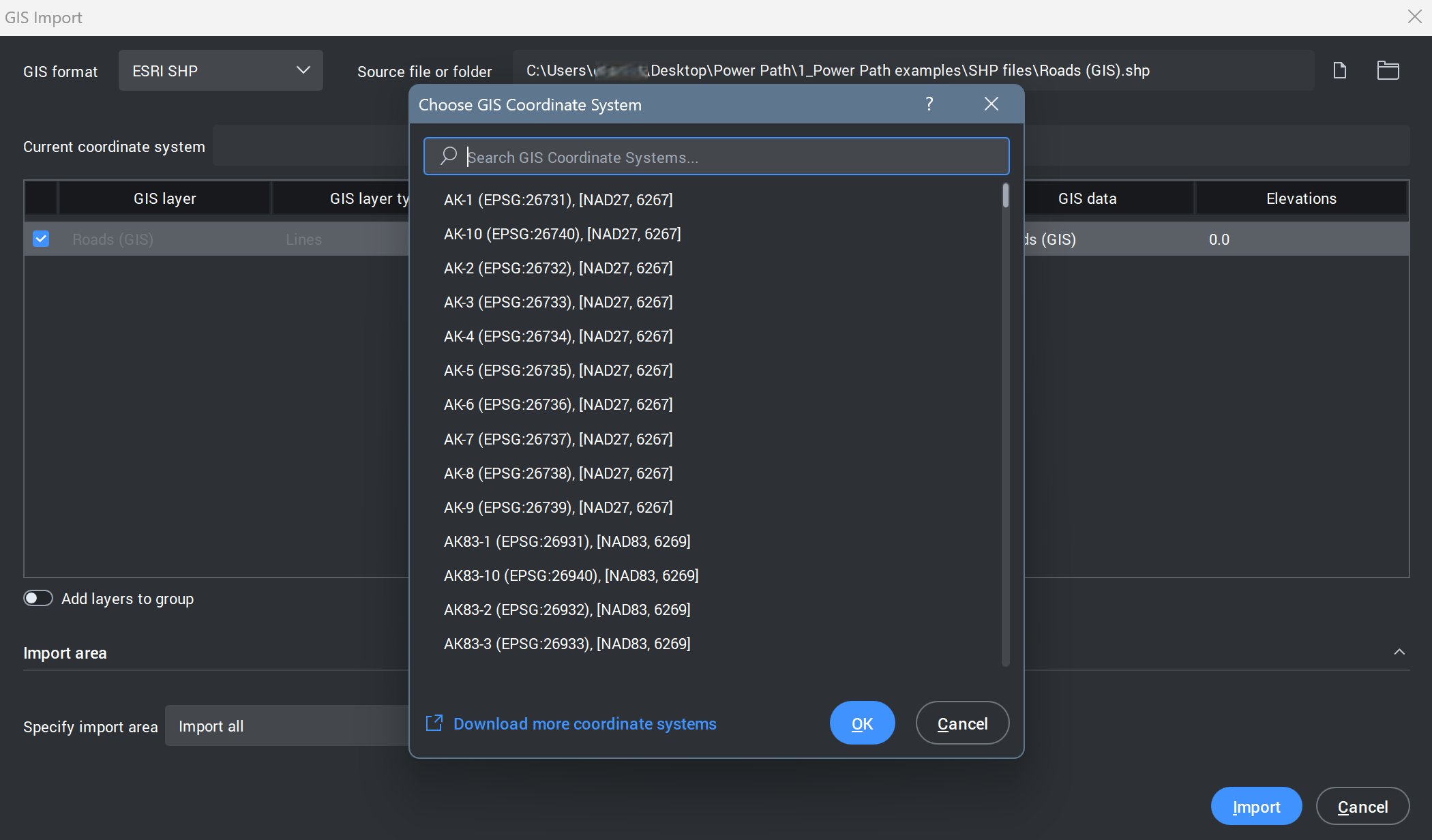
- Source coordinate system: Coordinate reference system of the imported layer. The user can edit it by clicking on the named coordinate system.
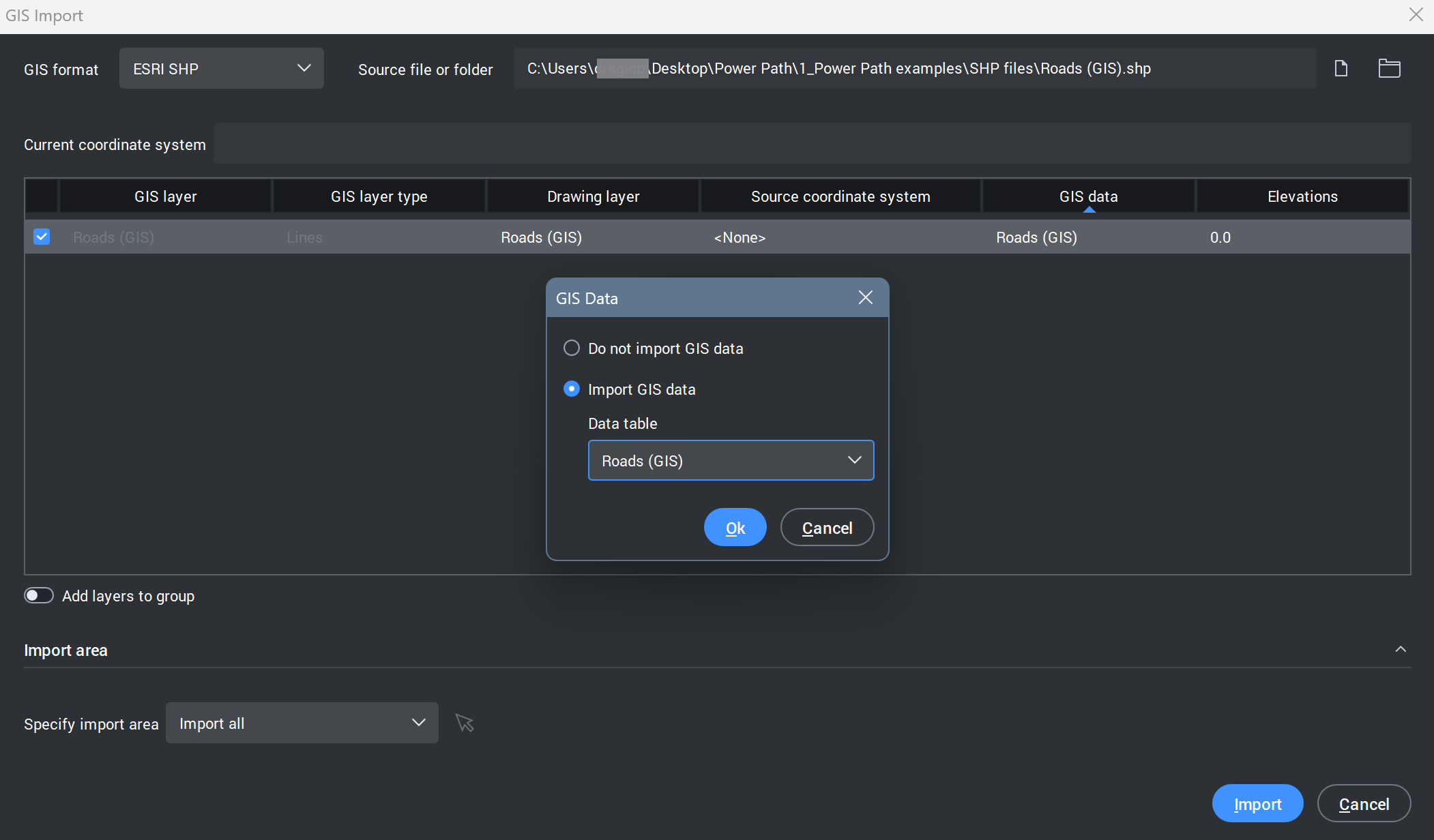
- GIS data: Name or identifier of the dataset. The user can edit it by clicking on the named GIS data.
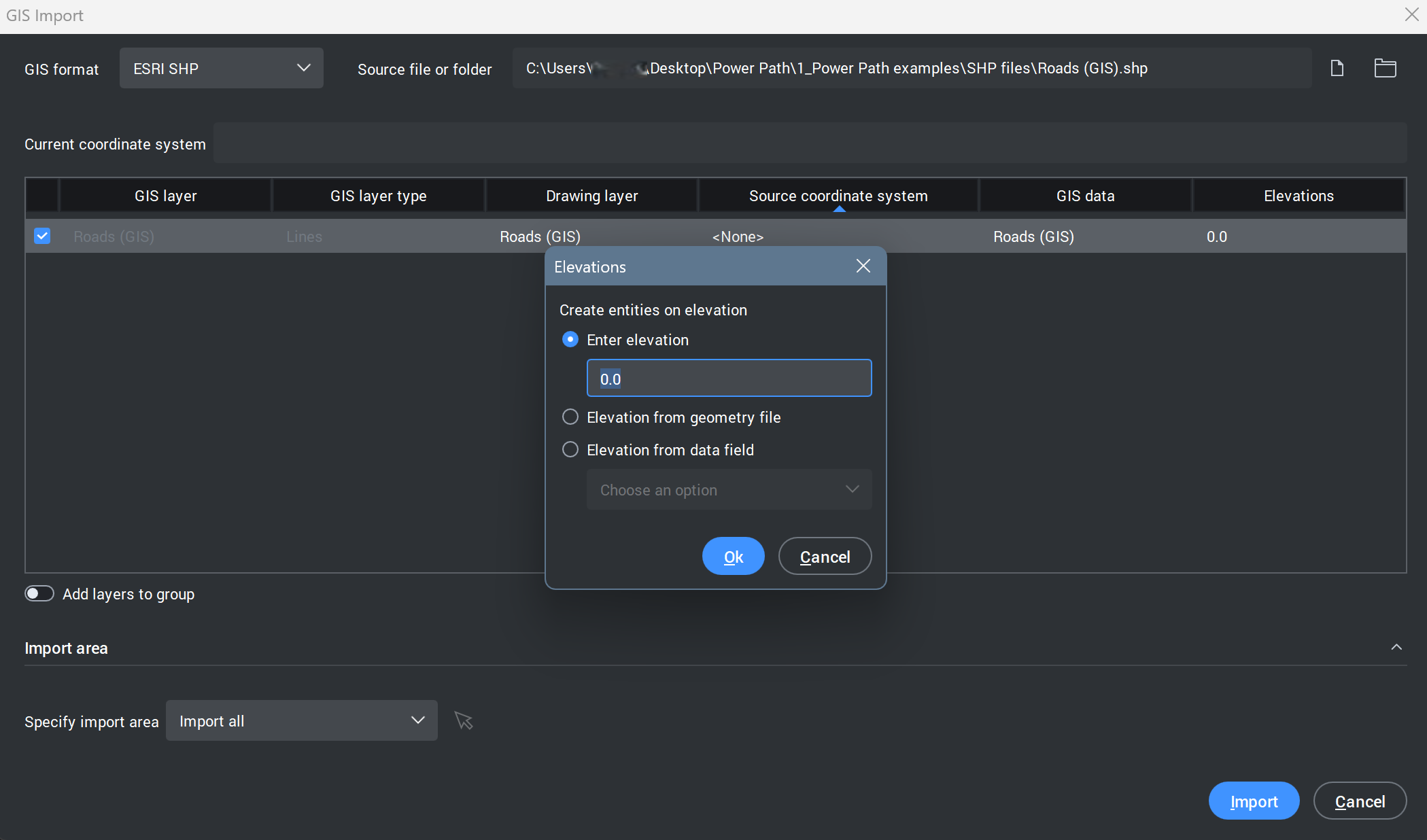
- Elevations: Elevation value or attribute associated with the layer. The user can edit it by clicking on the value of the elevation.
Add layers to group: This toggle allows the user to group all imported layers (data) into a single group.
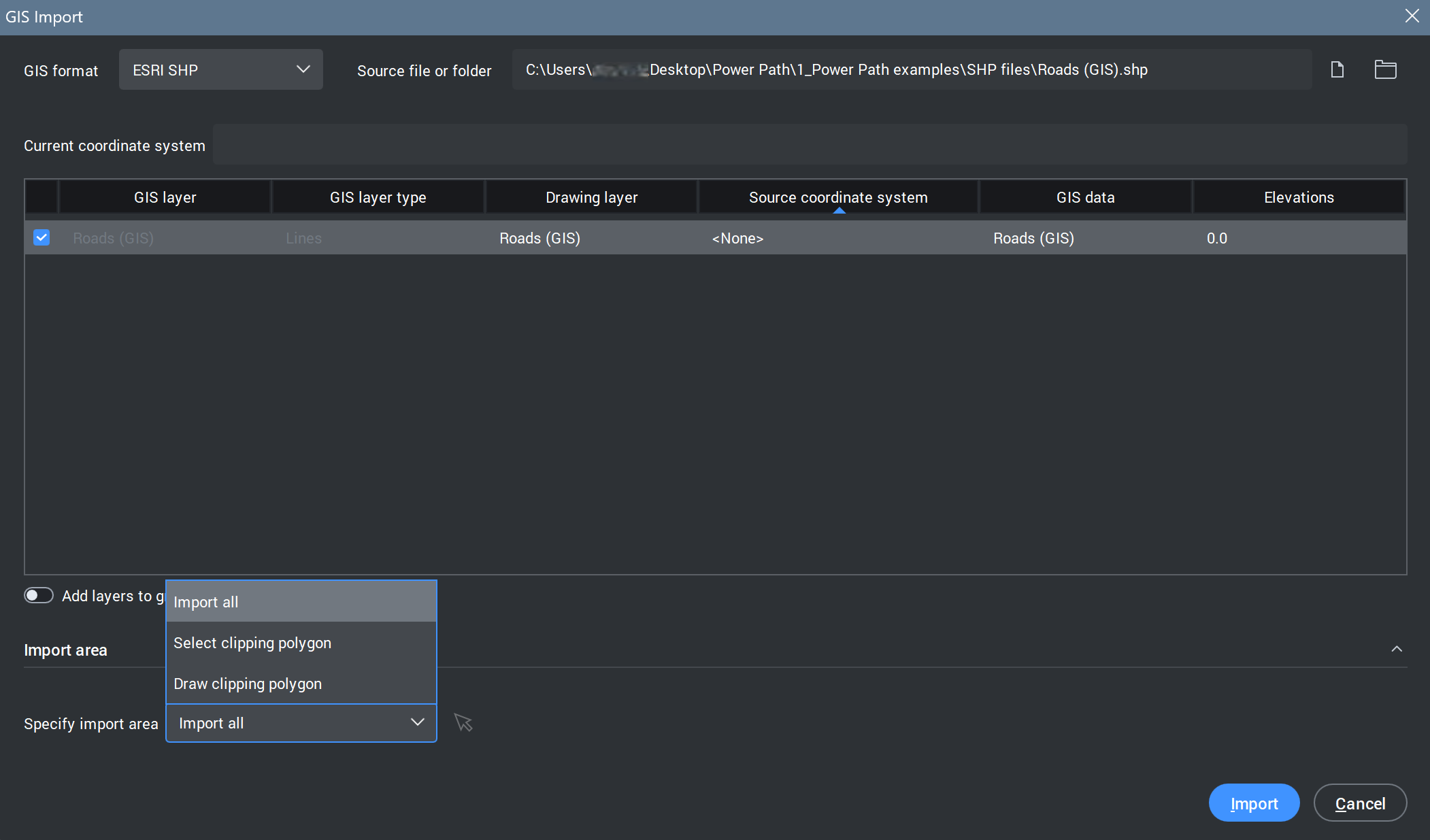
Specify import area: Here the user defines the spatial extent of the data to be imported. Available options include:
- Import all – imports the entire dataset,
- Select clipping polygon – allows the user to select an existing polygon to define the import boundary or
- Draw clipping polygon – allows the user to manually draw a polygon to limit the import area.
Import: Starts the import process using the selected format and source.
Cancel: Closes the dialog without performing any action.
- Dialog box for: Source coordinate system
- Dialog box for: GIS data
- Dialog box for: Elevations
- Drop down menu for Specify import area
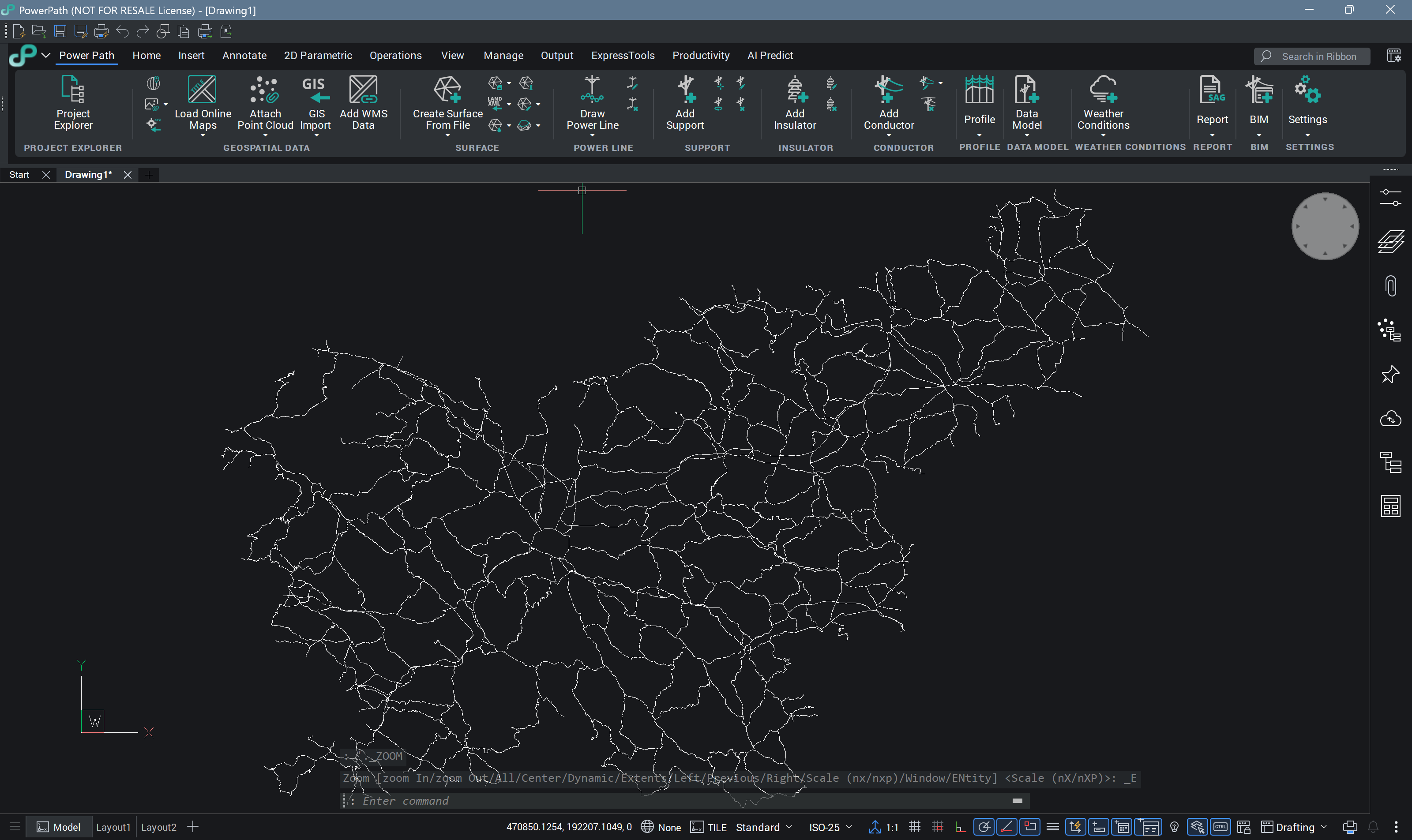 Imported GIS data with attributes
Watch video tutorial to see how the command works